
69 lines
3.9 KiB
Markdown
69 lines
3.9 KiB
Markdown
|
|
|
|
|
|
# Webdeck Player
|
|
*Cool music for your cool website!*
|
|
|
|
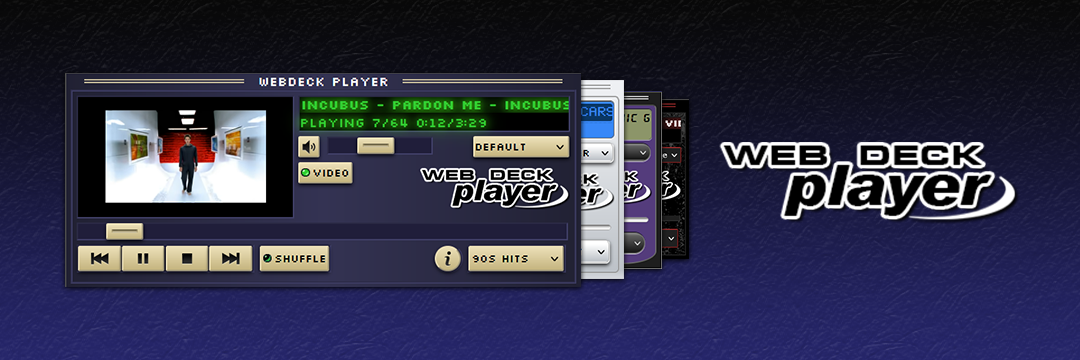
The **Webdeck Player** is a player for Youtube playlists coded entirely in Javascript and intended for personal websites. Use it for showing your amazing music taste to your visitors!
|
|
|
|
**Live demo**: https://webdeckplayer.neocities.org
|
|
|
|

|
|

|
|

|
|
[](https://paypal.me/cristiancfm)
|
|
|
|
|
|
## Features
|
|
- Play Youtube videos saved in playlists
|
|
- Integrated video controls (play, pause, volume, shuffling, etc.)
|
|
- Playlist selector - select between your defined playlists
|
|
- Themes - customize the player with the included themes or create your own!
|
|
- Very easy to use
|
|
- Written in pure modern Javascript - no weird stuff!
|
|
- Lightweight
|
|
- aesthetic™
|
|
|
|
|
|
## Downloads
|
|
Releases section: https://github.com/cristiancfm/webdeck-player/releases
|
|
|
|
## Instructions
|
|
*(read these instructions also on the [website](https://webdeckplayer.neocities.org))*
|
|
|
|
Getting started with the Webdeck Player is very simple. Follow this tutorial and you'll get your copy of the player running in a few minutes!
|
|
|
|
|
|
### Installing the player
|
|
1. Go to the Releases section of the Github repository and download the latest version available. You should get a `webdeck-player-v.X.X.X.zip` file.
|
|
2. Unzip the file and put the `webdeck-player` folder into your website root folder.
|
|
|
|
3. a. **Run the player on a separate browser window (recommended)**
|
|
- The player is designed to work inside a container of 600x250 pixels. You can make the player open in a new browser window - it will look great and visitors can navigate the rest of your site while keeping the player running! To do it, place a tag like the following in your site:
|
|
`<button onclick="window.open('/webdeck-player/index.html', 'Web Deck Player', 'height=250, width=600')">Open Web Deck Player</button>`
|
|
This code creates a button that will open a window with the specified height and width containing the player.
|
|
|
|
3. b. **Run the player inside an iframe**
|
|
- You can also run the player inside a page of your site using an iframe tag. To do it, you can write the following tag in the HTML of your page:
|
|
`<iframe src="/webdeck-player/index.html" height="250" width="600" scrolling="no"></iframe>`
|
|
|
|
### Adding playlists
|
|
|
|
Go to the `script.js` file inside the webdeck-player folder. There you can follow the instructions to change the playlists shown in the player.
|
|
|
|
### Adding themes
|
|
|
|
To add a new theme to the player, copy its folder to the themes folder. Then, open the `script.js` file and add it to the list following the instructions.
|
|
|
|
### Creating a new theme
|
|
|
|
Themes are just a collection of resources (like images or fonts) and a CSS file to modify the player appearance. You just need basic knowledge about CSS to start! Create a new theme following these steps:
|
|
|
|
1. Inside the `webdeck-player` folder, locate the themes folder and open it.
|
|
2. Choose a theme folder as a base, for example, the default theme. You can modify any other theme.
|
|
3. Duplicate your chosen folder and rename it. For example, call it `my-theme`.
|
|
4. Add your new theme to the `script.js` file following the instructions inside it.
|
|
5. Inside your theme folder, open the `webdeck-player.css` file and modify it to your liking. You can also change the fonts and the images. **Do not rename any image.** Their paths are used in the `script.js` file. The `about.txt` file is for adding a description about the theme and your name.
|
|
|
|
## About
|
|
Created by Chris. Licensed under the MIT License. Some components of the software such as fonts were created by others. In these cases, attribution was given for their work.
|